Entering a Goods Receipt - Header
This page describes the fields in the header of the Goods Receipt window. Please follow the links below for descriptions of the other cards:
---
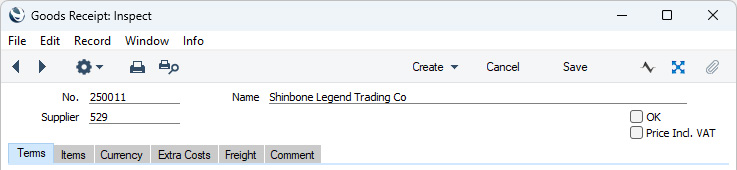
- No.
- Paste Special
Select from another Number Series
- The number of the Goods Receipt. The default will be chosen as follows:
- It will be taken from the first unused number in the number sequence allocated to the current user on the 'Number Series' card of their Person record.
- It will be taken from the number sequence specified in the Number Series Defaults setting in the System module.
- It will be taken from the first valid row in the Number Series - Goods Receipts setting.
- It will be the next number following on from the last Goods Receipt entered.
- You may change the default, but not to a number that has already been used. If you have defined at least one number sequence in the Number Series - Goods Receipts setting, the number you change to must be inside a valid number sequence.
- You will not be able to save a Goods Receipt if the No. does not belong to a valid number sequence. A valid number sequence is one for the period in which the Transaction Date of the Goods Receipt falls and with unused numbers, so this problem will most usually occur at the beginning of a new calendar or financial year. If you change number sequences each year, remember to update your Person records and Number Series Defaults setting if you are using them (steps 1 and 2 above) so that they refer to the new number sequences.
- If you are working in a multi-user environment, the Goods Receipt Number will be assigned when you save the Goods Receipt for the first time.
- Supplier
- Paste Special
Suppliers in Contact register
- Default taken from Purchase Order
- Enter the Supplier Number or use the 'Paste Special' function. When you press Return, the Supplier's name, address and other information will be entered in the appropriate fields.
- You cannot change the Supplier in a Goods Receipt that you created from a Purchase Order.
- Name
- The Supplier's Name from the Contact register will be placed here after you have entered the Supplier Number.
- OK
- When you have checked that the Goods Receipt is complete and correct, you should mark it as OK and save. After saving, no further changes will be possible (with the exception of the Comment and Language fields). Stock levels will be amended accordingly.
- If you have so determined in the Sub Systems setting in the Nominal Ledger and in the Number Series - Goods Receipts setting, a Nominal Ledger Transaction will be created in the Transaction register. Please refer to the Nominal Ledger Transactions from Goods Receipts page for details about this Transaction.
- You must mark the Goods Receipt as OK and save before you can create a Purchase Invoice for it. You can do this from the Purchase Order or from the Goods Receipt.
- You can use Access Groups to prevent particular users from marking Goods Receipts as OK. To do this, deny them access to the 'OK Goods Receipts' Action. You can also control whether it is possible to mark as OK and save Goods Receipts in which the Cost Price of at least one Item varies from its Weighted Average by more than a specified percentage. Please refer to the Cost Price Variance Alerts page for details about this feature.
- If you are using the Create Purchase Invoice when OKing Goods Receipt option in the Purchase Order Settings setting in the Purchase Orders module, a Purchase Invoice will be created automatically whenever you mark a Goods Receipt as OK and save, providing you created the Goods Receipt from a Purchase Order. If you are not using the Extra Costs Invoices from different Suppliers option in the Purchase Order Settings setting, this Purchase Invoice will also be marked as OK immediately and automatically. If you are using the Extra Costs Invoices from different Suppliers option, the 'Specify Create Purchase Invoice' window will open, allowing you to specify that any or all of the Freight, Customs and Extra Costs are to be included in the Invoice as well. In this case, the new Purchase Invoice will not be marked as OK automatically.
- Price Incl. VAT
- Default taken from
Purchase Order
- Tick this box if the prices entered for the goods received include VAT. For each Item, VAT will be calculated using the VAT Code in the Purch. VAT Code field in the Contact record for the Supplier, in the Item record, in the Item Group to which the Item belongs or on the 'VAT' card in the Account Usage P/L setting.
- If you are using this option, it is recommended that you do not use the Update Cost Price at Goods Receipt options in your Item records. When you enter an Item in a Goods Receipt in which you are using the Price Incl. VAT option, the Cost Price of the Item will be treated as a figure that includes VAT. This figure will be copied to the Unit Price field in the Goods Receipt row. The Cost Price in the Goods Receipt row will show the figure excluding VAT. When you mark as OK and save the Goods Receipt, the Cost Price figure excluding VAT will become the Item's new Cost Price if you are using the Update Cost Price at Goods Receipt option in the Item.
---
The Goods Receipt register in Standard ERP:
Go back to:


 Introduction to the Goods Receipt Register
