Delivery Notes
This page describes the Delivery Note form in the Stock module.
---
Together with the Picking Lists form, the Delivery Notes form is one of two forms that you can use to print Deliveries in batches. You will usually use the Picking Lists form to print Deliveries that you have not yet marked as OK, and the Delivery Notes form to print Deliveries that you have marked as OK. The Form Templates that you connect to these forms will usually reflect these different circumstances: the Picking List Form Template will print information to help stock staff to retrieve Items from the warehouse and to prepare Orders for delivery, while the Delivery Note Form Template will print information that will be helpful for delivery drivers and for Customers.
You can print Picking Lists and Delivery Notes using the following methods:
- Open a Delivery in an inspect window and click the Printer icon in the Button Bar (Windows/macOS) or select 'Print' from the File menu (all platforms). If you want to print to screen, click the Preview icon (Windows/macOS only).
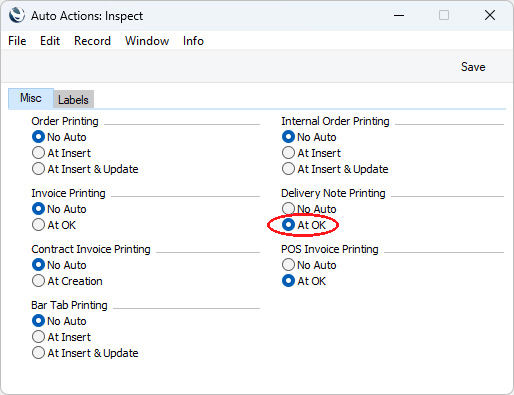
- You can choose to have Deliveries printed automatically when you save them after marking them as OK. To do this, select the At OK option in the Auto Actions setting in the System module.
- To print a selection of Deliveries, open the 'Deliveries: Browse' window, highlight one or more records in the list and then select 'Print' from the File menu. The selected records will then be printed.
If you are using Windows or macOS, you can highlight several Deliveries in the list by shift-clicking the first to the last record. This will select all records in the interval. If you need to apply a function to a number of Invoices that aren't in a range, highlight them while holding the Ctrl (Windows) or ⌘ (macOS) keys before selecting the function. If you are using iOS or Android, you can highlight a single record in the browse window by searching for it, so you can only print a single record at a time using this method.
- Another way to print a selection of Deliveries is to use the Delivery Notes form. Ensure you are in the Stock module and, if you are using Windows or macOS, click the [Forms] button in the Home Screen, or use the Ctrl-D/⌘-D keyboard shortcuts. If you are using iOS or Android, tap the [Routines] button in the Home Screen and then tap [Forms]. Double-click or tap 'Delivery Notes' in the resulting list. The 'Specify Delivery Notes' window described immediately below will be opened.
- Finally you can also use the Picking Lists form.
If you use methods 1, 3 or 4, a Delivery that you have not marked as OK will be printed using the Picking List Form Template. A Delivery that you have marked as OK will be printed using the Delivery Note Form Template. Method 2 will only print Deliveries that you have marked as OK and so will always use the Delivery Note Form Template. Method 5 will always use the Picking List Form Template, even for Deliveries that you have marked as OK.
If you print a Delivery that you have marked as OK more than once, the second and subsequent copies will include the word "Copy" printed diagonally across the page as a watermark. If you do not need this watermark, select the Original option when printing a Delivery (method 4 above only) or select the No Test Printout option in the Optional Features setting in the System module (all methods except 5). As method 5 always uses the Picking List Form Template, this method will never print the "Copy" watermark.
If an Item appears in more than one row in a Delivery, you can choose whether it will be printed in Picking Lists and Delivery Notes in separate lines (as listed in the Delivery record) or in a single line, with a total quantity. To choose the second option, select the Summarised Picking List and Delivery Note option in the Structured Items setting. Items with Serial Numbers will still be listed individually.
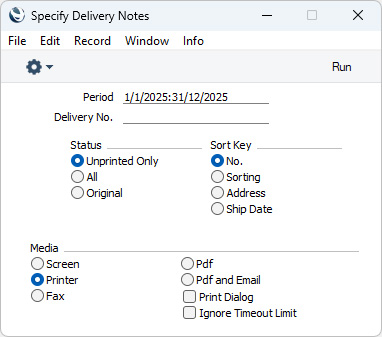
- Period
- Paste Special
Reporting Periods setting, System module
- Specify a period in this field: Deliveries whose Transaction Dates fall in the specified period will be printed.
- Delivery No.
- Range Reporting
Numeric
- Enter a Delivery number to print a single Delivery, or a range of Delivery Numbers separated by a colon (:).You must enter a Delivery Number or range of Delivery Numbers: if you leave this field empty, no forms will be printed.
- If there are any Deliveries in the range that you have not marked as OK, they will be printed using the Picking List Form Template instead of the Delivery Note Form Template.
- Status
- Use the Status options to specify which Deliveries are to be printed, as follows:
- Unprinted Only
- Choose this option if you only want to print Deliveries in the range that you have not previously printed.
- All
- This option will print every Delivery in the range. If you are not using the No Test Printout option in the Optional Features setting in the System module, any previously printed Deliveries that you have marked as OK will have the word "Copy" printed diagonally across the page as a watermark, while Deliveries that have not been marked as OK will be printed without a watermark.
- By default, all users with access to the Delivery Notes form will be able to reprint Delivery Notes. If you need to prevent particular users from reprinting Delivery Notes (i.e. from printing copies), assign them to Access Groups in which the access to the 'Disallow Printing Copies' Action is "Full". This Action will mean that the All and Unprinted Only options are effectively the same, and it will also prevent the users from reprinting Invoices and POS Invoices.
- Original
- This option will also print every Delivery in the range. Deliveries that you have marked as OK and that you have already printed will be printed again as though they were originals, without the "Copy" watermark, irrespective of whether you are using the No Test Printout option.
- If you specified in the Delivery Note Form Template that several copies are to be printed, perhaps on different printers, these copies will only be printed the first time you print a Delivery after marking it as OK and saving. If you need to print all copies again, you must print the Delivery using this function (i.e. not by opening the Delivery record and clicking the Printer icon or selecting 'Print' from the File menu), and you should choose the Original option.
- Sort Key
- Select one of these options to choose the order in which the Delivery Notes are to be printed.
Please follow the links below for lists of the fields that you can use when you design the Form Template to be used by the Delivery Note form:
- Header fields - Part 1, including:
- Basic Delivery Information
- Header fields - Part 2, including:
- Customer Information
- Delivery Address Information
- Hazard Levels
- Location Information
- Order Information
- Row fields
- and please refer here for a list of standard fields that you can include in almost every Form Template
---
Go back to:


 Introduction to Forms in the Stock Module
