Rebuild Stock
This page describes the 'Rebuild Stock' Maintenance function in the Technics module.
---
The Stock module was rewritten in version 5.1 of the application. As far as daily use of the Stock module is concerned, this rewriting will cause little or no difference. Most of these changes are behind the scenes, in the way information is stored. If you were using Standard ERP prior to this version, you need to rebuild your stock information using this function before you can start using the Stock module.
To rebuild your stock information, you will need to work in the Technics module. If you are working in a multi-user system and 'Technics' is not available when you click (Windows/macOS) or tap (iOS/Android) the [Switch Module] button in the Home Screen, the probable reason is that you have logged on as a Global User or Person that does not have access privileges for this module. If you are the system administrator, it is recommended that your Global User or Person record should belong to an Access Group that Starts from Full Access and that explicitly grants full access to the Technics module. In a single-user system, the probable reason is that the Server option is not ticked in the Configuration setting in the System module.
Follow these steps:
- Referring to the Updating from Previous Versions of Standard ERP page, update your database to the new version of the program.
- Back up your database in the usual fashion.
- Prior to version 5.1 of the application, you would use the Cost Model setting in the Sales Ledger to choose the Cost Model. You could choose different Cost Models for Invoices and Deliveries. Various options controlling the Cost Model were to be found in the Cost Accounting setting in the Stock module. In version 5.1, these two settings were combined. The Cost Model setting was removed, and the choice of Cost Model was moved to the Cost Accounting setting. The option to have different Cost Models for Invoices and Deliveries was replaced by a single Cost Model.
Having updated to the new version of the application, the next step is to check the options in Cost Accounting setting are correct (e.g. that you have selected the correct Cost Model). If, in the old Cost Model setting, your Cost Model, Delivery was set to None, make sure you have selected the Don't Post Cost on Deliveries option in the Cost Accounting setting.
- Once you are certain that the Cost Accounting setting has been configured correctly, change to the Technics module and select the 'Rebuild Stock' Maintenance function:
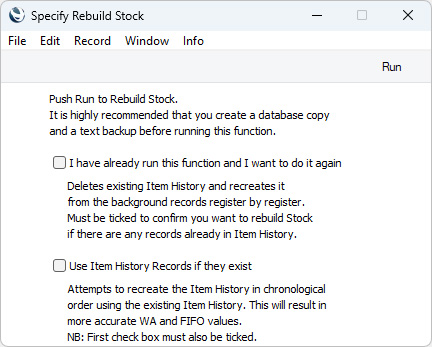
- If this is the first time you have used the 'Rebuild Stock' function, click (Windows/macOS) or tap (iOS/Android) the [Run] button. This will cause your stock information to be rebuilt.
- If you have more than one Company, repeat the process in each Company.
- It will not usually be necessary to run the 'Rebuild Stock' Maintenance function on subsequent occasions. If inaccuracies are introduced into stock records (for example, if the Stock List and Item History reports don't agree), it can be beneficial to run the 'Rebuild Stock' function to reconstruct the Item History Support Register. If you do decide to do this, it is strongly recommended that you do so in a back-up system first and to check the results thoroughly. Select both options in the 'Specify Rebuild Stock' window before clicking or tapping [Run].
---
Go back to:



