Stock Movements
This page describes the Stock Movements form in the Stock module.
---
The Stock Movements form allows you to print a hard copy of any record in the Stock Movement register.
You can also print an individual Stock Movement by opening the record and clicking the Printer icon (Windows/macOS) or selecting 'Print' from the File menu (all platforms). To print a Stock Revaluation to screen, click the Preview icon (Windows/macOS only).
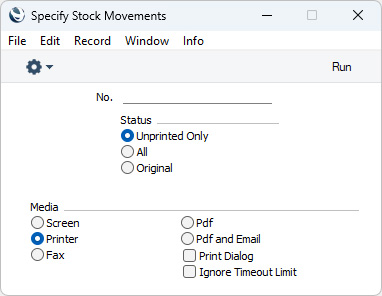
- No.
- Range Reporting
Numeric
- Enter a Stock Movement Number if you wish to print a single Stock Movement, or a range of numbers separated by a colon (;) if you wish to print several at once. You must enter a Stock Movement number or a range of numbers: if you leave this field empty, no Stock Movements will be printed.
- Status
- Use the Status options to specify which Stock Movements are to be printed, as follows:
- Unprinted Only
- Choose this option if you only want to print Stock Movements in the range that you have not previously printed.
- All
- This option will print every Stock Movement in the range. If you are not using the No Test Printout option in the Optional Features setting in the System module, any previously printed Stock Movement that you have marked as Sent and/or Received will have the word "Copy" printed diagonally across the page as a watermark, while Stock Movements that have not been marked as Sent or Received will be printed without a watermark.
- Original
- This option will also print every Stock Movement in the range. Stock Movements that you have marked as Sent and/or Received and that you have already printed will be printed again as though they were originals, without the "Copy" watermark, irrespective of whether you are using the No Test Printout option.
- If you specified in the Stock Movement Form Template that several copies are to be printed, perhaps on different printers, these copies will only be printed the first time you print a Stock Movement. If you need to print all copies again and you have marked the Stock Movement as Sent and/or Received, you must print the Stock Movement using this function (i.e. not by opening the Stock Movement record and clicking the Printer icon or selecting 'Print' from the File menu), and you should choose the Original option.
You can use the fields listed below when you design the Form Template to be used by the Stock Movement form. If you do not want to print the decimal places in numeric fields, choose the Cut Decimals option in the record in the Values in Text setting for the Language specified in the Company Info setting.
Header FieldsHeader Fields will be printed once per Stock Movement record.
| Field in Form Template | Prints (from Stock Movement) | | | | ATCUD | Prints the ATCUD (AT códico único de documento) for the Stock Movement, constructed from the validation code in the ATCUD field in the relevant row in the Legal Record Numbers setting (flip B) for the Official No. of the Stock Movement, followed by a dash, followed by the Official No. (only printed if the VAT Law in the Company Info setting is "Portuguese") | | CMR Text | CMR | | Comment | Comment | | Country Code (Customer) | If the Stock Movement was created from a Sales Order, prints the Code from the record in the Countries setting for the Country in the Contact record for the Customer in that Sales Order | | Country Code (Customer ISO2) | If the Stock Movement was created from a Sales Order, prints the Code (ISO 2) from the record in the Countries setting for the Country in the Contact record for the Customer in that Sales Order or, if the Code (ISO 2) is blank, the Code if it has two characters | | Country Code (Customer ISO3) | If the Stock Movement was created from a Sales Order, prints the Code (ISO 3) from the record in the Countries setting for the Country in the Contact record for the Customer in that Sales Order or, if the Code (ISO 3) is blank, the Code if it has three characters | | Customer Name | If the Stock Movement was created from a Sales Order, prints the Name of the Customer in that Sales Order | | Customer Type | If the Stock Movement was created from a Sales Order, prints the phrase "Not VAT Registered" (only printed if the VAT Law in the Company Info setting is "Portuguese" and if the Type on the 'Company' card of the Contact record for the Customer in that Sales Order is "Person") | | Customer VAT Reg. Number | If the Stock Movement was created from a Sales Order, prints the VAT Reg. No. in that Sales Order | | Day | The day from the Received Date. For example, the day from 2 January 2025 will be printed as "2" | | Delivery Address | To Address. The first line will only be printed if you are using the Organisation name option in the Form Settings setting. This information will be printed on separate lines, so you should specify a Line Height for this field. Use the Form Settings setting to set the format of this field (e.g. to specify whether blank lines will be printed, whether parts of the address will be printed on the same line, etc.) | | Delivery Date | Received Date | | Document Type | Prints the words or phrases "Normal", "Transport of own goods", "Sales Consignment Stock", "Transport of 3rd Party Goods" or "Global Transport", depending on the Type of the Stock Movement | | Driver | Driver | | Freight Company | Name (of the Freight Company) | | Freight Company Code | Freight Company | | Freight Company's Reg. Number | Reg. No. (of the Freight Company) | | From Location | From Location | | From Position | From Position | | Month | The month from the Received Date. For example, the month from 2 January 2025 will be printed as "1" | | Month in words | The name of the month in the Received Date, taken from the record in the Days and Months setting in the System module for the Language in the current user's Person record | | Note | Prints the text of the first Note attached to the Stock Movement. If you specify a Field Argument, the Note whose Comment is the same as the Field Argument will be printed | | Official Serial Number | Official Ser. No. If the VAT Law in the Company Info setting is "Portuguese", this will be printed with the with prefix "MOVST", "MOVGA", "MOVGC", "MOVGT" or "MOVGL", depending on the Type of the Stock Movement | | Order Address | From Address. The first line will only be printed if you are using the Organisation name option in the Form Settings setting. This information will be printed on separate lines, so you should specify a Line Height for this field. Use the Form Settings setting to set the format of this field (e.g. to specify whether blank lines will be printed, whether parts of the address will be printed on the same line, etc.) | | Order Delivery Address | Via Address. The first line will only be printed if you are using the Organisation name option in the Form Settings setting. This information will be printed on separate lines, so you should specify a Line Height for this field. Use the Form Settings setting to set the format of this field (e.g. to specify whether blank lines will be printed, whether parts of the address will be printed on the same line, etc.) | | Order Number | If the Stock Movement was created from a Sales Order, prints the No. of that Sales Order | | Ordered Total Weight | Sum of the values in the "Ordered Weight, row" row field | | Original/Copy | Prints "Original" (if the Stock Movement has not previously been printed) or "Copy" (otherwise) | | Payment Number for Russia | Prints the No. of the Stock Movement with the first three characters removed | | Person | Name of the Person printing the form, from their Person record | | Planned Sent Date | Plan. Sent Date | | Planned Sent Time | Plan. Sent Time | | Portuguese QR Barcode | Prints a QR barcode for the Stock Movement. You should give this field a Style in which the Barcode has been set to "QR Code" and the QR Version to an appropriate value for the size of the QR Code on the page (only printed if the VAT Law in the Company Info setting is "Portuguese") | | Portuguese SAFT Hash Control | Prints a string constructed from characters 1, 11, 21 and 31 of the hash signature of the Stock Movement, a hyphen and the phrase "Processado por programa certificado n? 2020 /AT Standard ERP" | | Reason | Reason | | Reason Text | Prints the three Description lines from the Standard Problem record for the Reason. This will be printed on separate lines, so you should specify a Line Height for this field | | Sent Date | Sent Date | | Shipment Address | If the Stock Movement was created from a Sales Order, prints the Name and Delivery Address in that Sales Order. The Name will only be printed if you are using the Organisation name option in the Form Settings setting. This information will be printed on separate lines, so you should specify a Line Height for this field. Use the Form Settings setting to set the format of this field (e.g. to specify whether blank lines will be printed, whether parts of the address will be printed on the same line, etc.) | | Stock Serial Number | No. (i.e. Stock Movement Number) | | Tax Authority Approval Code | Tax Seal (only printed if the VAT Law in the Company Info setting is "Portuguese". The Tax Seal is obtained using 'Send to Tax Authorities' function on the Operations or Tools menu. Please refer to the description of the Legal Record Numbers setting in the Sales Ledger for more details) | | To Location | To Location | | To Pay in Text | Prints the Sum of the values in the "Sum, Price" row field as a phrase. The phrase is constructed using the relevant record in the Values in Text setting for the Language in the current user's Person record or in the Company Info setting (not printed if the VAT Law in the Company Info setting is "Portuguese") | | To Position | To Position | | Total Base Price | Sum of the values in the "Sum, base price" row field (not printed if the VAT Law in the Company Info setting is "Portuguese") | | Total In Price | Sum of the values in the "Row Sum" row field (not printed if the VAT Law in the Company Info setting is "Portuguese") | | Total Price (totpris) | Sum of the values in the "Sum, Price" row field (not printed if the VAT Law in the Company Info setting is "Portuguese") | | Total Quantity (totqty) | Sum of Rcvd. Qty in each row | | Total Volume | Sum of the values in the "Volume, row" row field | | Total Weight | Sum of the values in the "Weight" row field | | Truck Information | Truck Information | | Type | Type | | Via Location | Via Location | | Year | The year from the Received Date. For example, the year from 2 January 2025 will be printed as "2025" |
Location InformationThe following fields print information from the records in the Locations setting for the From, Via (if there is one) and To Locations specified in the Stock Movements:
| Field in Form Template | Prints (from Location) | | | | From Address | Address of the From Location. The first line will only be printed if you are using the Organisation name option in the Form Settings setting. This information will be printed on separate lines, so you should specify a Line Height for this field. Use the Form Settings setting to set the format of this field (e.g. to specify whether blank lines will be printed, whether parts of the address will be printed on the same line, etc.) | | From Contact | Contact from the From Location | | From Name | Name of the From Location | | From Fax Number | Fax from the From Location | | From Telephone | Telephone from the From Location | | To Address | Address of the To Location. The first line will only be printed if you are using the Organisation name option in the Form Settings setting. This information will be printed on separate lines, so you should specify a Line Height for this field. Use the Form Settings setting to set the format of this field (e.g. to specify whether blank lines will be printed, whether parts of the address will be printed on the same line, etc.) | | To Contact | Contact from the To Location | | To Name | Name of the To Location | | To Fax | Fax from the To Location | | To Phone | Telephone from the To Location | | Via Location Address | Address of the Via Location. The first line will only be printed if you are using the Organisation name option in the Form Settings setting. This information will be printed on separate lines, so you should specify a Line Height for this field. Use the Form Settings setting to set the format of this field (e.g. to specify whether blank lines will be printed, whether parts of the address will be printed on the same line, etc.) | | Via Location Contact Person | Contact from the Via Location | | Via Location Email | Email from the Via Location | | Via Location Fax | Fax from the Via Location | | Via Location Name | Name of the Via Location | | Via Location Phone | Telephone from the Via Location |
Note: use the "From Location" , "Via Location" and "To Location" fields to print the Locations themselves, taken from the various Location fields in the Stock Movement record.
Row FieldsRow fields will be printed once per row, so remember to specify a Line Height in each one and to set the Format to "Matrix".
| Field in Form Template | Prints (from Stock Movement row) | | | | Description 1 | Description | | Extra Cost | R. Extra Cost (not printed if the VAT Law in the Company Info setting is "Portuguese") | | From Position, row | From Position (from flip E) | | Item Code | Item | | Item Code 2 | Item | | Ordered Quantity | Req. Qty | | Ordered Weight, row | Req. Qty * Weight from the Item record | | Price | R. New Unit Pr. (not printed if the VAT Law in the Company Info setting is "Portuguese") | | Price, row | Base Price (from flip C) (not printed if the VAT Law in the Company Info setting is "Portuguese") | | Quantity | Rcvd. Qty | | Quantity 2 | Rcvd. Qty * Coeff. or Rcvd. Qty / Unit Coeff. (depends on the Unit 2 Conversion Calculation options in the Stock Settings setting) | | Quantity Conversion 1 , Quantity Conversion 2 , Quantity Conversion 3 | If the Item record has a Conversion 1 and a Conversion 2, these fields print the Rcvd. Qty converted as appropriate. Please refer to the description of these fields here for details and an example | | Row Number | Row number (only printed if a row has an Item) | | Row Sum | Rcvd. Qty * Base Price (from flip C) (not printed if the VAT Law in the Company Info setting is "Portuguese") | | Sent Extra Cost | S. Extra Cost (not printed if the VAT Law in the Company Info setting is "Portuguese") | | Sent Old Price | S. Old Unit Pr. (not printed if the VAT Law in the Company Info setting is "Portuguese") | | Sent Price | S. New Unit Pr. (not printed if the VAT Law in the Company Info setting is "Portuguese") | | Sent Qty | Sent Qty | | Sent Sum | Sent Qty * S. New Unit Pr. (not printed if the VAT Law in the Company Info setting is "Portuguese") | | Serial Number bc39 | Serial No., printed using the Code 39 barcode format. You should give this field a Style that uses a Code 39 barcode font | | Serial Number (serienr) | Serial No. | | Sum, base price | Rcvd. Qty * Base Price from the Item record (not printed if the VAT Law in the Company Info setting is "Portuguese") | | Sum, FIFO | Rcvd. Qty * R. Old Unit Pr. (not printed if the VAT Law in the Company Info setting is "Portuguese") | | Sum, Price | Rcvd. Qty * R. New Unit Pr. (not printed if the VAT Law in the Company Info setting is "Portuguese") | | To Position, row | To Position (from flip E) | | Volume, row | Rcvd. Qty * Item Volume from the Item record | | Weight | Rcvd. Qty * Weight from the Item record |
Item InformationThe following fields print information from the records in the Item register for the Items specified in each Stock Depreciation row. In these fields, you should specify a Line Height and set the Format to "Matrix":
| Field in Form Template | Prints (from Item) | | | | Alternative Code | Alternative Code | | Commodity Code | Commodity Code | | Conversion 1 | Conversion 1 | | Conversion 2 | Conversion 2 | | Depth | Item Depth | | Height | Item Height | | Item Barcode BC39 | Barcode from the Barcodes setting in the Stock module, or Barcode or Item Number from the Item record, printed using the Code 39 barcode format. You should give this field a Style that uses a Code 39 barcode font | | Item Barcode EAN 13 | Barcode from the Barcodes setting in the Stock module, or Barcode or Item Number from the Item record, printed using the EAN 13 barcode format. You should give this field a Style that uses an appropriate EAN 13 barcode font | | Item Price | Base Price (not printed if the VAT Law in the Company Info setting is "Portuguese") | | Shelf Code | Shelf Code | | Unit | Unit | | Volume | Item Volume | | Weight, Item | Weight | | Width | Item Width |
Please refer here for details of the standard fields that you can also include in the Form Template.
---
Go back to:
|


 Introduction to Forms in the Stock Module
