|
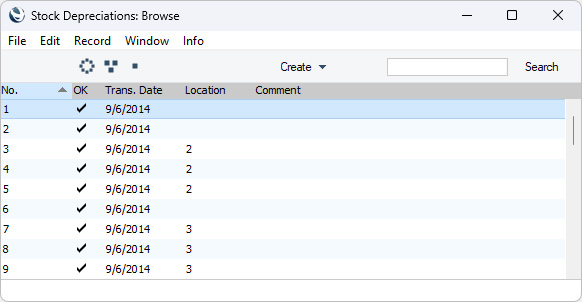
Search HansaManuals.com HansaManuals Home >> Standard ERP >> Stock >> Stock Depreciation Register Previous Next Entire Chapter in Printable Form Search This text refers to program version 2026-06-25 Introduction to the Stock Depreciation Register The Stock Depreciation register allows you to remove Items from stock because they are lost or written off. You can also use Stock Depreciation records to remove from stock Items that you will use internally, although it is recommended that you use the Stock Transfer register for this purpose, especially for Items that you will depreciate as Assets.As well as removing Items from stock, Stock Depreciation records will also update the stock valuation in the Nominal Ledger, if you have so determined in the Sub Systems setting in the Nominal Ledger and in the Number Series - Stock Depreciations setting. To open the Stock Depreciation register, first ensure you are in the Stock module, then click (Windows/macOS) or tap (iOS/Android) the [Registers] button in the Home Screen. Double-click or tap 'Stock Depreciations' in the resulting list. The 'Stock Depreciations: Browse' window will be opened, listing the Stock Depreciation transactions that you have already entered:
If you are using Windows or macOS, there will be three buttons in the top left-hand corner of the 'Stock Depreciations: Browse' window. These are part of the Limited Access feature. You can use them as follows (Windows versions of the buttons illustrated on the left, macOS on the right):
Please refer to the page describing the 'Access' card of the Person register for full details about the Limited Access feature. If you need Stock Depreciation records to pass through an approval process before you can mark them as OK and you have configured such a process using the Approval Rules register in the Business Alerts module, an extra column that displays the Approval Status of each Stock Depreciation record will be added to the 'Stock Depreciations: Browse' window. Please refer to the description of the Approval Status field in the header of the Stock Depreciation record for brief details about the approval process and here for full details. The Stock Depreciation register in Standard ERP is described in detail on the following pages:
Go back to:
Previous Next Top Entire Chapter in Printable Form |