Recipes
This page describes the Recipes setting in the Stock module, with the emphasis on using Recipes to construct Structured Items. You can also work with Recipes using the Recipe register in the Production and MRP modules: please refer here for a description concentrating on using Recipes to construct Stocked Items.
---
Assembled Items are Items that are constructed by your company from other Items (i.e. from components). The list of the components (including quantities) needed to build an assembled Item is known as a Recipe in Standard ERP. The Recipe is therefore the Bill of Materials for the assembled Item.
Two different types of assembled Items are available, depending on whether you are using the Production module:
- Structured Items
- If you are not using the Production module, you must enter an assembled Item to the Item register as a Structured Item (i.e. you should select Structured as the Item Type on the 'Pricing' card of the Item record). Stock levels for Structured Items will not be maintained, as it is assumed that a Structured Item will be assembled at the moment the Delivery is made. At that moment, stock levels of the components will be reduced.
- Stocked Items
- If you need to construct an assembled Item before delivery and to hold the assembled Item in stock, you will need to use the Production module to create a "Production". A Production will normally be the result of a production order. When you mark a Production as "Finished", the stock levels of the Input Items (i.e. the components) will be reduced, and the stock of the Output Item(s) (i.e. the assembled Item(s)) will be increased. You should enter all such Output Items to the Item register as Stocked Items (i.e. you should select Stocked as the Item Type on the 'Pricing' card of each Item record). You can only build such Items can only be built using the Production module. They are built and held in stock in advance of delivery.
- An Input Item can itself be a sub-assembly. If so, it should be a Stocked Item that is itself built using Production records, so that stock levels rise and fall as units are built and then used as sub-assemblies.
In both situations, the assembly process (the quantity required of each component and the resulting stock movements) is governed by a Recipe. The description below concentrates on using Recipes to construct Structured Items. For more details about using Recipes to construct Stocked Items (a process requiring the presence of the Production module), please refer here.
As previously mentioned, a Structured Item is an Item that you will construct or assemble as part of the delivery process. It might be that the construction or assembly process simply requires you to bundle various components together. An example of this might be a stereo system that is a bundling together of a number of components such as an amplifier, loudspeakers etc., that you also sell separately. To enter such a Structured Item in the Item register, follow these steps:
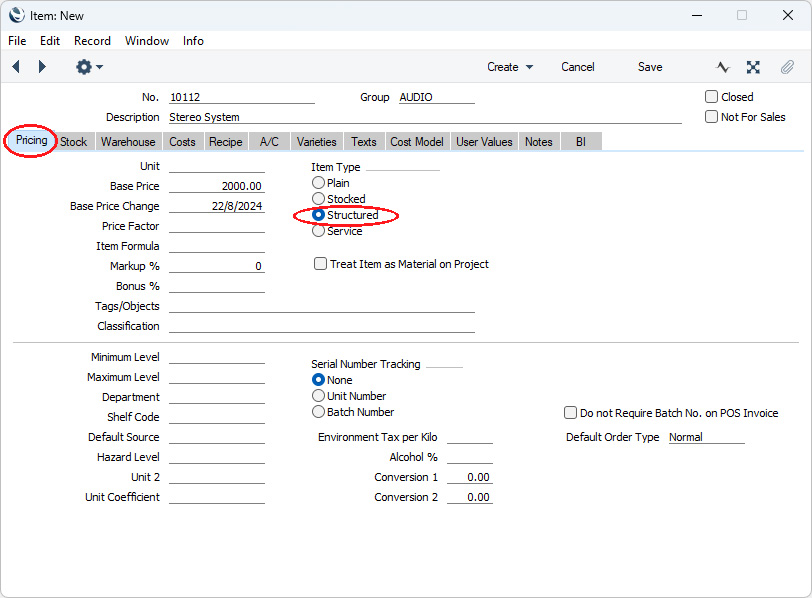
- Create a new record in the Item register for the stereo system with pricing and other details as appropriate. Select the Structured Item option on the 'Pricing' card:
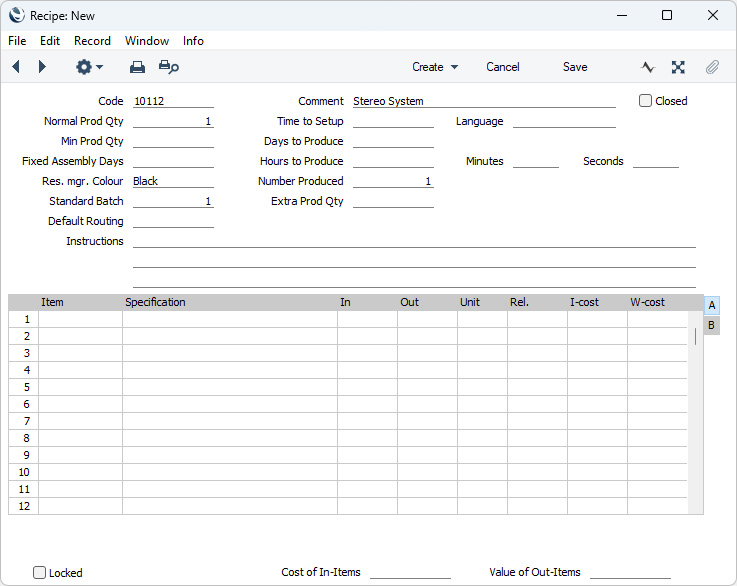
- As the Item is a Structured Item, you will not be able to save the record until you specify a Recipe. If you have not yet created the Recipe, select 'Recipe' from the Create menu (Windows/macOS) or + menu (iOS/Android) to create a new empty Recipe. In the new Recipe, the Code will as a default be the Item Number of the Structured Item, and the Item Description will be copied to the Recipe's Comment field:
- List the components in the Recipe together with Input quantities and then save it. More details about this process can be found below. At the moment you can't include the Structured Item in the Recipe as the Output Item as it hasn't been saved yet.
- Return to the Item record: the Code of the new Recipe will have been copied to the Recipe field on the 'Recipe' card:
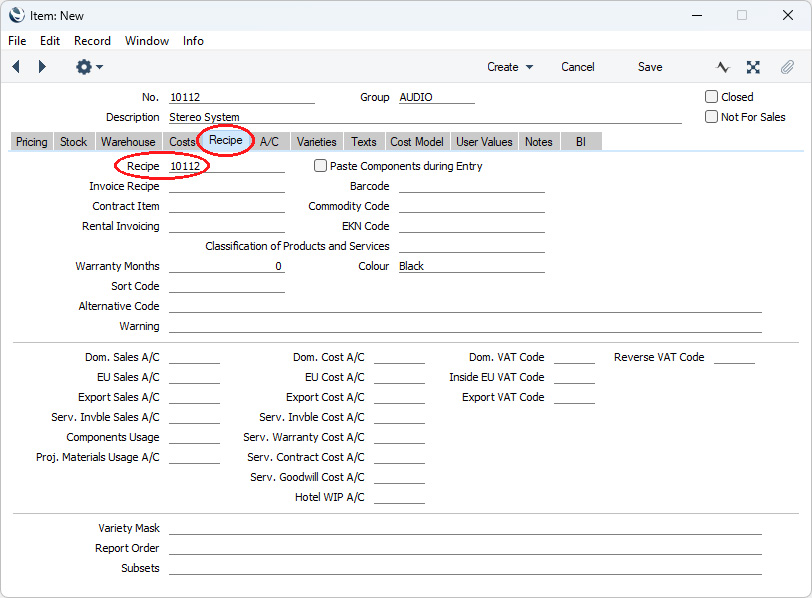
While checking the 'Recipe' card, you may consider selecting the Paste Components during Entry option. This will cause the components of the Structured Item to listed in sales and outgoing stock transactions (e.g. Quotations, Orders, Invoices and Stock Depreciations), select this option. The components will be listed in these records when you enter the quantity of the Structured Item. As a consequence, the components will be printed on documentation. You will need to select this option if any of the components is Serial Numbered, to allow you to specify the Serial Numbers when delivering.
Save the Item record.
- Although it is not strictly necessary, you may for reasons of clarity want to return to the Recipe and add the Structured Item as the Output Item.
After following these steps, you will be able to sell the Structured Item. When you enter an Order or Invoice, enter the Item Number of the Structured Item. When you deliver the Order or mark the Invoice as OK and save, the stock levels of each of the components will be reduced according to the Recipe. The stock balance of a Structured Item is thus dependent on the availability of the components.
You can use the following methods to define a Recipe:
- As already described, you can create a Recipe from an Item record by selecting 'Recipe' from the Create menu (Windows/macOS) or + menu (iOS/Android). You ca n do this from a Structured Item and also from a Stocked Item that you intend to construct using Productions. If you have already saved the Item (as you may have with a Stocked Item but possibly not with a Structured Item), the Item will be placed as an Output Item in the first row in the Recipe matrix. In other words, it is assumed that the Item from which you created the Recipe is the final assembly.
- You can add a Recipe directly to the Recipes setting (in the Stock module). This setting is also available as a register in the Production and MRP modules. If you are in the Stock module, click the [Settings] button in the Home Screen (Windows/macOS) or select 'Settings' from the Tools menu (with 'wrench' icon, iOS/Android) and double-click or tap 'Recipes' in the subsequent list. If you are in the Production or MRP modules, click or tap the [Registers] button in the Home Screen and double-click or tap 'Recipes' in the resulting list. In all modules, the 'Recipes: Browse' window will be opened, listing the Recipes that you have already entered. Select 'New' from the Create menu (Windows/macOS) or + menu (iOS/Android) to create a new Recipe record. Alternatively, highlight in the browse window an existing Recipe that is similar to the one you need to add and select 'Duplicate' from the same menu.
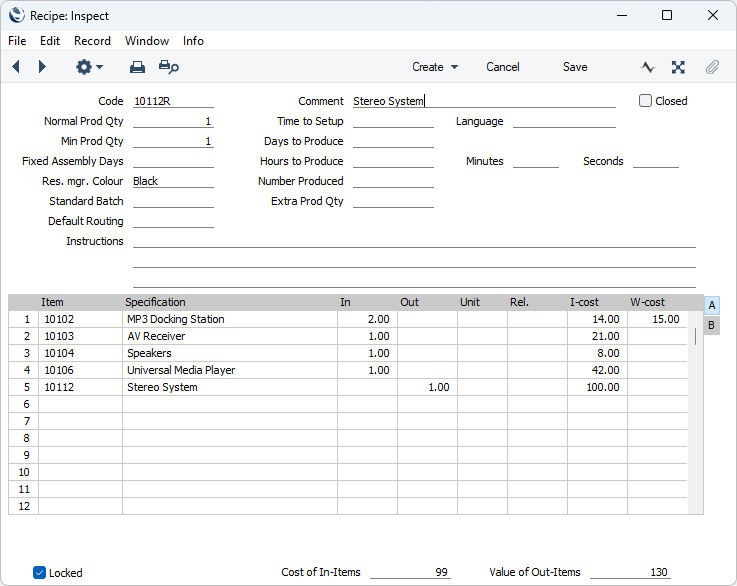
Fill in the fields as described below the illustration and then save the Recipe by clicking the [Save] button (Windows/macOS) or tapping √ (iOS/Android).
- Code
- The Code for the Recipe can be up to 20 characters long. It is recommended that you use a Code that is similar to the Item Number of the assembled Item.
- Comment
- A description of the assembly.
- Closed
- Tick this box if the Recipe can no longer be used. Closed Recipes will appear in the 'Recipes: Browse' window but not in the Recipes 'Paste Special' list.
- If the result of a Closed Recipe is a Structured Item and you use that Item in an Order, Invoice or other sales or stock transaction, you will not be able to save the transaction. It is therefore recommended that you mark the Structured Item as Closed as well, to remove it from the Item 'Paste Special' list so that you do not use it by mistake in sales transactions.
- Normal Prod Qty
- You can only use this field if the Production module is installed (i.e. when the result of the Recipe is a Stocked Item). Please click here for a description.
- Time to Setup, Min Prod Qty, Days to Produce, Fixed Assembly Days, Hours to Produce, Res. mgr. Colour, Number Produced, Standard Batch, Extra Prod Qty, Days to Assemble Each Unit, Default Routing
- Similarly, you can only use these fields if the Production module is installed.
- Instructions
- Use these three lines to record instructions about how the Recipe should be used.
Use the grid area that takes up most of the screen to list the Input Items (i.e. the components that will be used to build the final assembly) and to specify the Item Number of the assembly or the finished product (i.e. the result of the Recipe). If you do not have the Production module or you will build the assembled Item on the point of delivery, the result of the Recipe must be a Structured Item. If you will build the Item using the Production register or if the result of the Recipe will itself be used as a component in another Recipe, it must be a Stocked Item. A Recipe can result in more than one assembly or finished product: if so, they should all be the same Type (i.e. all Structured Items or all Stocked Items).
Flip A
- Item
- Paste Special
Item register
- Enter the Item Numbers of each of the Input Items (i.e. the components) and of the Output Item(s) (i.e. of the finished product(s)). You can list the Items in any order.
- You cannot use Structured Items as components.
- You can use an Item with Varieties as a component or as a finished Item. You must enter the combined Item/Variety Number (i.e. you must choose a specific Variety). Use 'Paste Special' from this field or from the In or Out Qty fields to ensure the combined Number is correct. Please refer here for more details about Varieties.
- In addition to the 'Paste Special' feature, you can use the 'Item Search' function on the Operations menu (Windows/macOS) or Tools menu (iOS/Android) to add Items to the Recipe.
- Specification
- The Item Name from the Item register will be placed here when you enter the Item Number .
- In
- If an Item is an Input Item (i.e. a component), enter the quantity required to make or build the finished product. Do not enter an In quantity for the assembled Item.
- Out
- The quantity of assembled Items that can be made from the components listed above. Usually, this will be just one, and it must be one if the Out Item is serial numbered at unit level or a Structured Item.
- Unit
- The Unit will be brought in from the Item record. This is for information only and cannot be modified, but it might help setting the In or Out Qty.
- Rel.
- Relativity. You must use this field if the result of the Recipe is that more than one Item will be assembled (i.e. there is more than one row in the Recipe with an Output Item). Usually, this will only be the case if the Output Items are Stocked Items (i.e. Items that will be built using the Production register). Enter a figure in each row representing an Output Item. When you use the Recipe in a Production, the total stock value of the components will be calculated using the appropriate Cost Models. The stock values of the Output Items will then be calculated from that total using the ratio that you enter here.
- The Relativity figures are not percentages but ratios. For example, the total stock value of the Input Items is 103 and there are two Output Items with Relativities of 30 and 60 respectively. The stock value of the first Output Item will be 103 * 30/(30 + 60), and the stock value of the second Output Item will be 103 * 60/(30 + 60). If the Out Qty of the first Output Item is two, then the unit stock value of the first Output Item will be 103 * 30/((2*30) + 60), and the stock value of the second Output Item will be 103 * 60/((2*30) + 60).
- If the Recipe has more than one Output Item, you will not be able to save it if you have not specified a Relativity figure in every row with an Output Item.
- I-cost
- Input Cost value (per unit). If the row contains an Input Item, enter the unit Cost Price for the Item. The default will be the Cost Price of the Item. The cost shown in this field is NOT the same as the stock value calculated using the usual Cost Model. You can update this figure to the latest Cost Price in the Item record using the 'Update Recipes' Maintenance function.
- If the row contains an Output Item (i.e. the assembled Item), enter the unit cost value of that Item. This will usually be the sum of the Cost Prices of the Input Items, taking quantities into account. Again, the default will be the Cost Price of the Item, and again you can update the figure using the 'Update Recipes' function. In this case, however, 'Update Recipes' will change the figure to the latest sum of the Cost Prices of the Input Items, and optionally will copy this new sum figure to the Cost Price field in the Item record for the assembled Item.
- The total costs of the Input Items will be shown in the Cost of In-Items field in the footer, while the costs of the Output Items will be shown in the Value of Out-Items field.
- W-cost
- The W-cost is the Work Cost incurred in building or assembling the Recipe. Usually, this will be cost of the labour required to build the assembled Item.
- You should only specify a Work Cost if the result of the Recipe is a Stocked Item that you will build using the Production register. If the result is a Structured Item the Work Cost will be ignored.
- You should enter the Work Cost on a row featuring an Input Item, as shown in the illustration above. This ensures the Work Cost will correctly be credited to the Production Components Account in the Nominal Ledger Transactions that will be created from Production records that use the Recipe. If you enter the Work Cost on an Output row, the Work Cost will incorrectly be debited (not credited) to the Production Components Account.
- You can usually place the Work Cost in any Input row, but do not enter it in a row in which the Input Item is a Service Item. However, you may need to choose the row more carefully if you are using the Use Item Groups for Cost Accounts option in the Cost Accounting setting in the Stock module and you have specified Production Work Cost Accounts in your Item Groups. In this situation, the Production Work Cost Account will be taken from the Item Group to which the Item in the row with the Work Cost belongs. You should therefore enter the Work Cost in the correct row in the Recipe, so that the correct Account will be credited. If you are not using the Use Item Groups for Cost Accounts option or you have not specified a Production Work Cost Account in the relevant Item Group, the Production Work Cost Account will be taken from the Account Usage Stock setting.
- Although you should enter the Work Cost in an Input row, the figure is independent of the In Qty in that row. For example, if the Work Cost is 10.00, enter 10.00: do not enter 5.00 if the In Qty is 2.
- The Work Cost should be the total cost incurred through one application of the Recipe. For example, if the Out Qty of the assembled Item is 2, this means that one application of the Recipe will add two assembled Items to stock. If the cost incurred in assembling these two Items is 10.00, enter 10.00 as the Work Cost. Do not enter the cost per unit, 5.00.
- If you are using the Add Work Cost option in the Production Settings setting in the Production module, a Work Cost will be added to the Recipe automatically. This Work Cost will be calculated using the Work Cost per Hour specified in the same setting and the time required for the Recipe (the total of the Time to Setup and the Days and Hours to Produce). The Work Cost will be placed in the W-cost field in the last Input row in the Recipe. You cannot change this calculated Work Cost figure: if you need to adjust it, add a Plain or Service Item to the Recipe with an In Qty and appropriate I-Cost (use Service Items in which the Cost Price is blank if you need to be able to enter different cost values in each Production, or Service Items with a Cost Price or Plain Items if you need standard cost values. The I-Cost of a Plain or Service Item in a Production will be copied from the Cost Price field in the relevant Item record each time you save the Production, with the exception that the I-Cost will not be updated if the Item is a Service Item and the Cost Price is blank).
- Work Cost values are included in both the Cost of In-Items and Value of Out-Items fields in the footer.
Flip B
- Description
- Any notes about the Item can be recorded here.
- Recipe
- This field shows whether the Item is an assembly (i.e. it is one with a Recipe specified on its 'Recipe' card). This is updated automatically and can't be changed.
Footer
- Locked
- Once you are certain the Recipe is correct, you should tick this box to prevent further changes. Once you have used a Recipe in a transaction (e.g. Delivery or Production), you should not change it, especially if the result of the Recipe is a Structured Item in which you have not selected the Paste Components During Entry option. In this case changing the Recipe will introduce inaccuracies into the stock records, so the Recipe will be marked as Locked automatically when you use it in a Delivery for the first time. However, before the Delivery stage is reached and before even using such a Structured Item in a Sales Order, it is recommended that you lock its Recipe yourself. Otherwise, if you include the Item in a Sales Order and then change the Recipe, the 'Order' figures (quantities on unfulfilled Sales Orders) for the components in the 'Item Status' window (and many reports) will become incorrect.
- If it subsequently becomes necessary to change a Recipe, you should not do so. Instead you should create a new one (and attach it to a new Stocked or Structured Item).
! | Do not change a Recipe once it has been used in a stock transaction. | |
- Cost of In-Items
- This field contains the sum of the costs of the Input Items (W-Cost + (I-Cost x In Qty)). If the assembled Item is a Stocked Item, you should transfer this value to the Cost Price field on the 'Costs' card of the Item record for the assembled Item, either manually or using the 'Update Recipes' Maintenance function in the Production module. This will ensure that gross margin calculations are correct when you sell the assembled Item.
- Value of Out-Items
- This field contains the sum of the costs of the Output Items.
Operations MenuPlease refer here for details about the 'Open Production Item Alternative' function and here for details about the 'Search' function.
---
Go back to:
|


 Introduction to Settings in the Stock Module
