Entering a Stock Movement - Header
This page describes the fields in the header of the Stock Movement window. Please follow the links below for descriptions of the other cards:
---
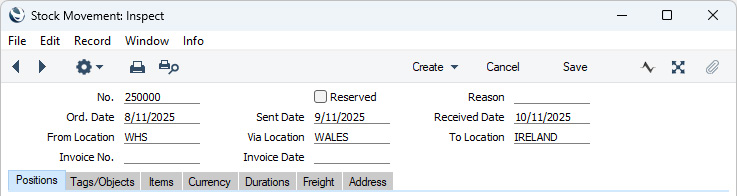
- No.
- Paste Special
Select from another Number Series
- The number of the Stock Movement. The default will be chosen as follows:
- It will be taken from the first valid row in the Number Series - Stock Movements setting.
- It will be the next number following on from the last Stock Movement entered.
- You may change the default, but not to a number that has already been used. If you have defined at least one number sequence in the Number Series - Stock Movements setting, the number you change to must be inside a valid number sequence.
- You will not be able to save a Stock Movement if the No. does not belong to a valid number sequence. A valid number sequence is one for the period in which the Order Date falls and with unused numbers, so this problem will most usually occur at the beginning of a new calendar or financial year.
- If you are working in a multi-user environment, the Stock Movement Number will be assigned when you save the Stock Movement for the first time.
- Ord. Date
- Paste Special
Choose date
- The date when you ordered or confirmed the Stock Movement: the default is the current date. This date cannot be later than the Sent Date or the Received Date.
- If you are using the Set Delivery and Stock Movement Date to Day of OK option in the Stock Settings setting, the Order Date will be changed to the current date automatically when you mark the Stock Movement as Confirmed and save it.
- After marking the Stock Movement as Confirmed and saving, you will not be able to change the Order Date.
- From Location
- Paste Special
Locations setting, Stock module
- The stock Location from where the Items are to be moved. You must enter a From Location before you can save the Stock Movement for the first time, even if you have specified a Main Location in the Stock Settings setting.
- When you specify a From Location, its address will be brought in to the 'Address'card from the relevant record in the Locations setting.
- Once you have marked the Stock Movement as Confirmed and saved it, you will not be able to change the From Location.
- You can prevent the current user from using a particular Location (i.e. from withdrawing stock from a particular Location), using the Order Reserv. Access field in their Person record. If the current user specifies a Location that they should not use, the message "You are not allowed to withdraw any items from this location." will appear when they try to save the Stock Movement. Please refer here for more details about this feature.
- Invoice No.
- This field is used in Portugal, where a Stock Movement can be printed as a Stock Movement Invoice, which requires an Invoice Number to be assigned to the Stock Movement. To print a Stock Movement as a Stock Movement Invoice, select 'Print Stock Movement Invoices' from the Operations menu (Windows/macOS) or Tools menu (iOS/Android). This function will automatically assign an Invoice Number to the Stock Movement as part of the process, and the Invoice Number will then be placed in this field. Please refer to the 'Print Stock Movement Invoices' page for more details.
- Reserved
- Tick this box if you have some or all of the Items on a Stock Movement in stock and you want to reserve them so that they are not delivered to Customers. Usually you will use this option when you want to reserve the Items but are not yet ready to finalise the Stock Movement. The Req. Qty in each row is the quantity that will be reserved.
- If you create a Delivery for Items that are in a Reserved Stock Movement, the default Del. Qty figures in that Delivery will exclude the Reserved units if you are using the Allow Over Delivery or Do Not Allow Over Delivery options in the Stock Settings setting. This will help ensure that you maintain sufficient stock for the Stock Movement until you mark it as Sent or Received. But if you are using the Always Deliver option in the same setting, the Del. Qty figures will include Reserved units if they are needed to fulfil the Order in full.
- The Reserved check box reserves stock by quantity. So, if you have ten units in stock and you reserve eight, you will only be able to deliver two from Sales Orders. You can't use this check box to reserve individual Serial Numbers.
- If you are using the Do Not Allow Reserving More Than In Stock option in the Order Settings setting, you will not be able to reserve a quantity of an Item that is greater than you have in stock in the specified Location. If you are using this option and you try to save a Stock Movement in which the Req. Qty in any row is greater than the quantity in stock, you will be told, "You cannot reserve more than is available in stock". This option will only apply to Stocked Items. Without needing to leave the Stock Movement, you can use the 'Item Status' function (described briefly here and in full here) to check the current stock level of a particular Item together with the quantity required for other Orders and the quantity already reserved on Orders and Stock Movements.
- You can only tick the Reserved box in a Stock Movement that you have not yet marked as Confirmed.
- You can use Access Groups to prevent certain users from ticking (and also from removing the tick from) the Reserved box in Stock Movements (and in Sales Orders). To do this, deny them access to the 'Change Reserved Status on Orders and Stock Movements' Action.
- Sent Date
- Paste Special
Choose date
- The date you moved the stock from the From Location to the Via Location. If there is no Via Location (i.e. you are moving the stock straight to the To Location), leave this date blank. This date cannot be earlier than the Order Date or later than the Received Date.
- If you have specified a Via Location and you mark the Stock Movement as Sent, you must specify a Sent Date before you can save it (the Sent Date will be set to the current date automatically if you are using the Set Delivery and Stock Movement Date to Day of OK option mentioned in the next paragraph). Once you have done this and saved the Stock Movement, you will not be able to change the Sent Date.
- If you have specified in the Sub Systems setting in the Nominal Ledger and in the Number Series - Stock Movements setting that Nominal Ledger Transactions will be created from Stock Movements, separate Transactions will be created when you mark the Stock Movement as Sent and save (if there is a Via Location and a Sent Date), and when you mark the Stock Movement as Received and save. The Sent Date will be used as the Date in the first of these Transactions.
- If you are using the Queued Cost Model (FIFO/LIFO), you must make certain that you enter all stock transactions in strict chronological order. Failure to do this may cause your FIFO/LIFO queue to become incorrect. You should not, for example, enter a Stock Movement with yesterday's date if you have already entered an outgoing stock transaction of any kind (e.g. Delivery, Stock Depreciation, Stock Movement) with today's. It is also recommended that you always mark Stock Movements as Received when you save them for the first time. Do not go back to an earlier Stock Movement and mark it as Sent if there are later Stock Movements that you have already marked as Sent or Received, unless you change the Sent Date as well. To help ensure FIFO/LIFO accuracy, if you are using the Queued Cost Model, it is recommended that you use the Set Delivery and Stock Movement Date to Day of OK option in the Stock Settings setting. This will change the Sent Date to the current date automatically when you mark the Stock Movement as Sent and save it.
- Via Location
- Paste Special
Locations setting, Stock module
- You can use a Stock Movement to move stock simply from the From Location to the To Location, or you can move it via an intermediary Location. Specify the intermediary Location here. This could be a transit point, a temporary storage Location or the truck, ship or other method of transport. If you have many vehicles running between the From and To Locations, the Via Location could also be all of those vehicles, so in this case the Via Location would contain all stock that is on its way to the To Location.
- When you specify a Via Location, its address will be brought in to the 'Address'card from the relevant record in the Locations setting.
- You do not need to specify a Via Location, but if one is needed you must specify it before marking the Stock Movement as Confirmed and saving because you cannot change the field afterwards.
- If stock that is moved to a particular To Location will always pass through the same Via Location, you can specify that Via Location in the Location record for the To Location. After doing so, that Via Location will be brought in to a Stock Movement automatically when you specify the To Location. You will not be able to change to a different Via Location in a Stock Movement, but you will be able to make the Via Location field blank.
- The Via Location cannot be a Location in which you have selected the Require Position option or one that you have marked as Closed.
- Invoice Date
- This field is used in Portugal, where a Stock Movement can be printed as a Stock Movement Invoice, which requires an Invoice Date to be assigned to the Stock Movement. To print a Stock Movement as a Stock Movement Invoice, select 'Print Stock Movement Invoices' from the Operations menu (Windows/macOS) or Tools menu (iOS/Android). This function will automatically assign an Invoice Date to the Stock Movement as part of the process, and the Invoice Date will then be placed in this field. Please refer to the 'Print Stock Movement Invoices' page for more details.
- Reason
- Paste Special
Standard Problems setting, Sales Ledger/Service Orders module
- Specify a Standard Problem here to describe the reason why you needed to enter the Stock Movement.
- Received Date
- Paste Special
Choose date
- The date you moved the stock into the To Location. This date cannot be earlier than the Order Date or the Sent Date.
- When you mark the Stock Movement as Received, you must specify a Received Date before you can save it. Once you have done this and saved the Stock Movement, you will not be able to change the Received Date.
- If you have specified in the Sub Systems setting in the Nominal Ledger and in the Number Series - Stock Movements setting that Nominal Ledger Transactions will be created from Stock Movements, a Transaction will be created when you mark the Stock Movement as Received and save. The Received Date will be used as the Date in this Transaction.
- If you are using the Queued Cost Model (FIFO/LIFO), you must make certain that you enter all stock transactions in strict chronological order. Failure to do this may cause your FIFO/LIFO queue to become incorrect. You should not, for example, enter a Stock Movement with yesterday's date if you have already entered an outgoing stock transaction of any kind (e.g. Delivery, Stock Depreciation, Stock Movement) with today's. It is also recommended that you always mark Stock Movements with Via Locations as Sent when you save them for the first time. Do not go back to an earlier Stock Movement and mark it as Sent if there are later Stock Movements that you have already marked as Sent or Received, unless you change the Received Date as well. To help ensure FIFO/LIFO accuracy, if you are using the Queued Cost Model, it is recommended that you use the Set Delivery and Stock Movement Date to Day of OK option in the Stock Settings setting. This will change the Received Date to the current date automatically when you mark the Stock Movement as Received and save it.
- To Location
- Paste Special
Locations setting, Stock module
- The stock Location to where the Items are to be moved. You must specify a To Location before you can save the Stock Movement for the first time, even if you have specified a Main Location in the Stock Settings setting.
- When you specify a To Location, its address will be brought in to the 'Address'card from the relevant record in the Locations setting.
- Once you have marked the Stock Movement as Confirmed and saved it, you will not be able to change the To Location.
- If you have specified a Via Location in the Location record for the To Location, that Via Location will be brought in to a Stock Movement automatically when you specify the To Location. You will not be able to change to a different Via Location in a Stock Movement, but you will be able to make the Via Location field blank.
- The To Location cannot be a Location that you have marked as Closed.
---
The Stock Movement register in Standard ERP:
Go back to:
|



